


Report Parameters and Scheduling
Configure report parameters and scheduling options to customize the data scope and automate report generation at specified intervals.
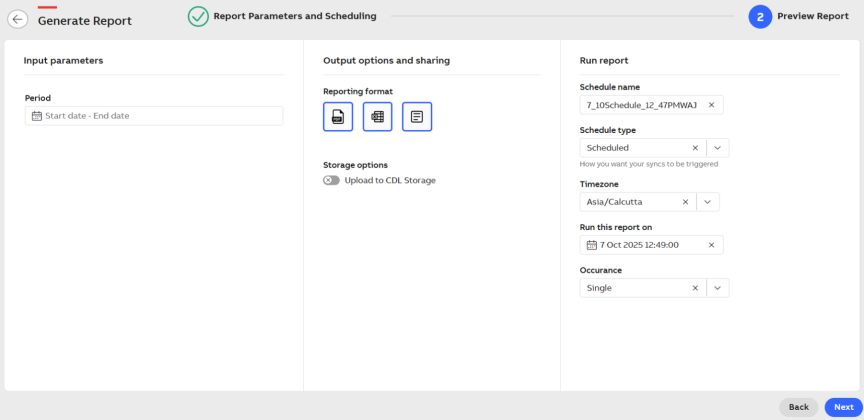
Report parameters and scheduling
- Input parameters
-
Click the Date and Time Picker to select the desired date and time range.
-
From the Absolute Time Range options, select one of the following: Relative, Custom, Last 7 Days, Last 30 days, MTD (min 7 days), QTD (min 15 days), YTD (min 30 days), Last 60 days, Last 90 days or Last Year.
If You Select Relative:
- Use the Range type dropdown to select from Today, Yesterday, Last, This, or Next, and enter the input fields accordingly.
- Use the calendar to select a start and end date.
- Select whether to display the time in 12-hour or 24-hour format and enter the time in the provided fields.
If You Select Custom:
- Select a Start Date & Time and End Date & Time using the calendar.
- Select whether to display the time in 12-hour or 24-hour format and enter the time in the provided fields.
For other date ranges, the period is filled automatically.
Once all selections are made, click Select to apply the date range.
-
-
Output options and sharing
-
Select the report format- PDF, Excel, or Docs- from the Reporting format section located at the middle section of the page.
When Upload to CDL Storage is selected, only the Excel format is available for report generation.
-
-
Run report
-
Enter Schedule Name
In the Schedule name field, enter a name for the schedule.
-
Select Schedule Type
From the Schedule type dropdown, select one of the following options:
Options
Sub-Options
Action
Run immediately
Click Next to proceed.
Cron Expression
Select the Timezone dropdown to add a cron expression (Ex: 0 25 5 11 9 ? 2025).
Scheduled
Select Time Zone From the Timezone dropdown, select the desired time zone. Set Run Date and Time In the Run this report on date picker, select the date and time (12HR or 24HR format) and click Select. Select Occurrance From the Occurrance dropdown, select Single or Recurring.
-
If you select Single, click Next to proceed.
-
If you select Recurring, complete the Recurring Pattern section.
Recurring Pattern Options
-
Daily - Enter a number in the Every field (in day(s)) using the up and down arrows to increase or decrease the value.
-
Weekly - Enter a number in the Repeat every field (in week(s)). Under On, select the days of the week (S, M, T, W, T, F, S).
-
Monthly - Enter a number in the Repeat every field (in month(s)). Then:
-
Enter a number in the Day field.
-
Or select a week from the Select Week of month dropdown (First, Second, Third, Fourth, Last) and a day of the week from the Select day of week dropdown.
-
Yearly - Enter a number in the Repeat every field (in year(s)). Then:
-
Select the month and date from the dropdowns.
-
Or, in the On the dropdowns, select (First, Second, Third, Fourth, Last) and a day of the week, then select the month.
-
-
Set Range of Recurrences In the Range of recurrences section, select one of the following:
-
End by - Select a date using the date range picker.
-
End after - Enter the number of occurrences.
-
No end date - Leave the schedule open-ended.
-
-
-
Click Next.